

What a QR code on a business card does
A business card QR code saves your details into someone’s phone with one scan, so your card is no longer the only record of you. Most cards end up in a drawer or a bin within a week. A saved contact stays, with your name spelled right and your number in the right field.
You can also point the code at a website, a portfolio or an online profile, which suits designers, photographers, consultants and anyone whose work is easier to show than describe.
How to make a business card QR code
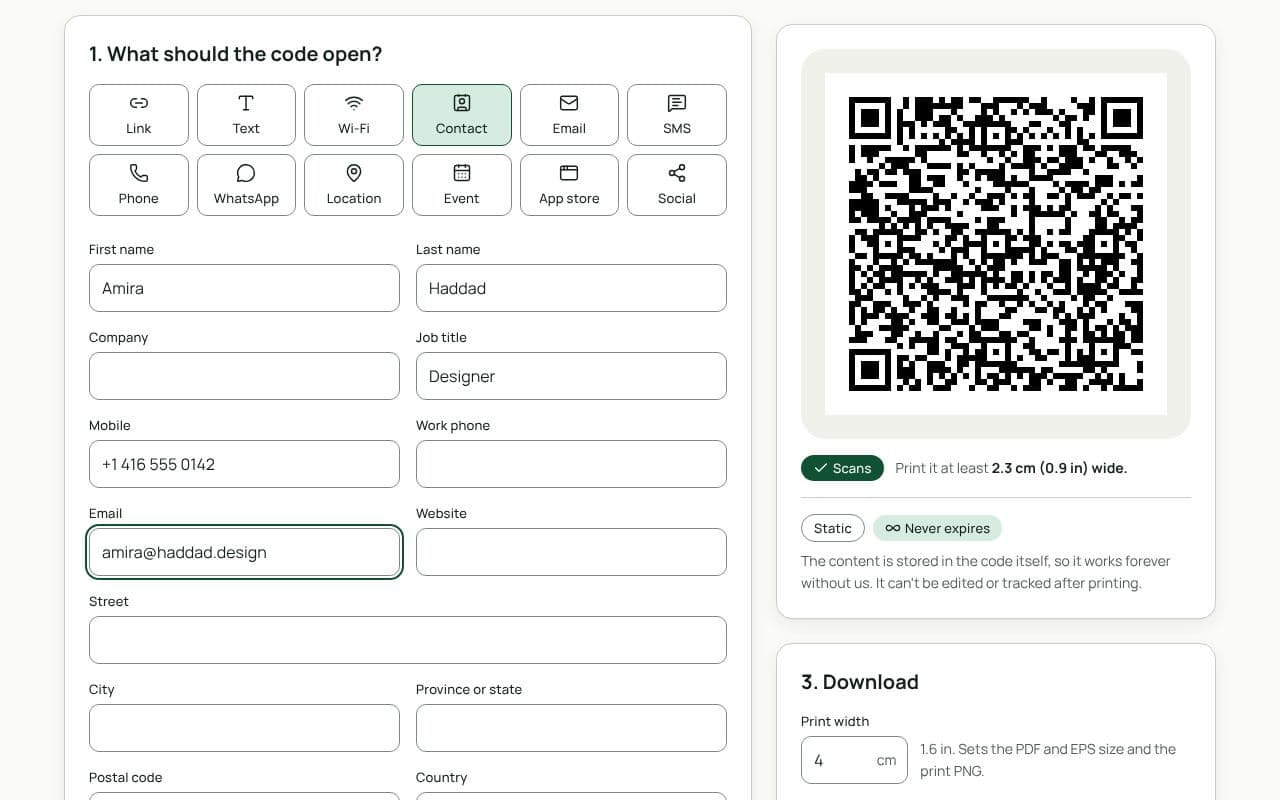
- Start with the contact details. This page opens the Contact type. Fill in First name, Last name, Company and Job title, then Mobile, Email and Website.
- Or switch to Link. If you’d rather send people to an online profile, choose the Link tile under “1. What should the code open?” and paste the address.
- Set the print width. Enter the size the code will be on your card, such as 2.5 cm. The scan check warns if the squares will be too small to print reliably.
- Match your card, then download. Use your card’s ink colour for the code, add a small frame such as “Scan to save”, then download an SVG, PDF or EPS for the printer, or a print-size PNG.
Planning the card
A standard card is 3.5 × 2 in in North America and 85 × 55 mm in much of the world. A 2.5 cm code takes up a little over a quarter of the card’s height on the front, which is why many people use the back. Allow for the quiet zone too: a clear border of at least 4 modules around the code, which also keeps it away from the trim line where the cutter can wander by a millimetre or two.
Design and print tips
- Keep the contact data lean. Each extra field makes the pattern denser. A name, one phone number, an email and a website are usually enough.
- Print dark on light. Light-coloured codes on dark card stock, and codes on metallic or foil finishes, often fail. If your card is dark, print the code on a light panel.
- Avoid spot UV or embossing on the code. Raised or glossy coatings distort the pattern and reflect light. Keep finishes away from the code area.
- Say what it does. “Scan to save my contact” under the code takes up one line and tells people it’s not just another website.
- Order a proof. Scan the printed proof on two different phones before approving the full run.
Static or dynamic?
We recommend: dynamic
Business cards are printed by the hundred and kept for years, so make the code a dynamic contact card. It opens your contact page with a Save contact button, and when your number, title or email changes you update it once and every card you’ve handed out shows the new details. A static contact code works with no signal and no service in between, but a change means new cards.