

What a QR code with a logo does
A QR code with a logo works exactly like any other code: scan it and the phone opens your link. The logo in the middle tells people who the code belongs to before they scan. That matters on packaging, posters, menus and shop windows, where people are rightly careful about scanning codes they don’t recognise.
It works because QR codes are built with error correction: spare data spread across the pattern so a phone can read the code even when part of it is missing. A logo is a deliberate patch of missing pattern, and error correction fills in the gap.
How to make a QR code with your logo
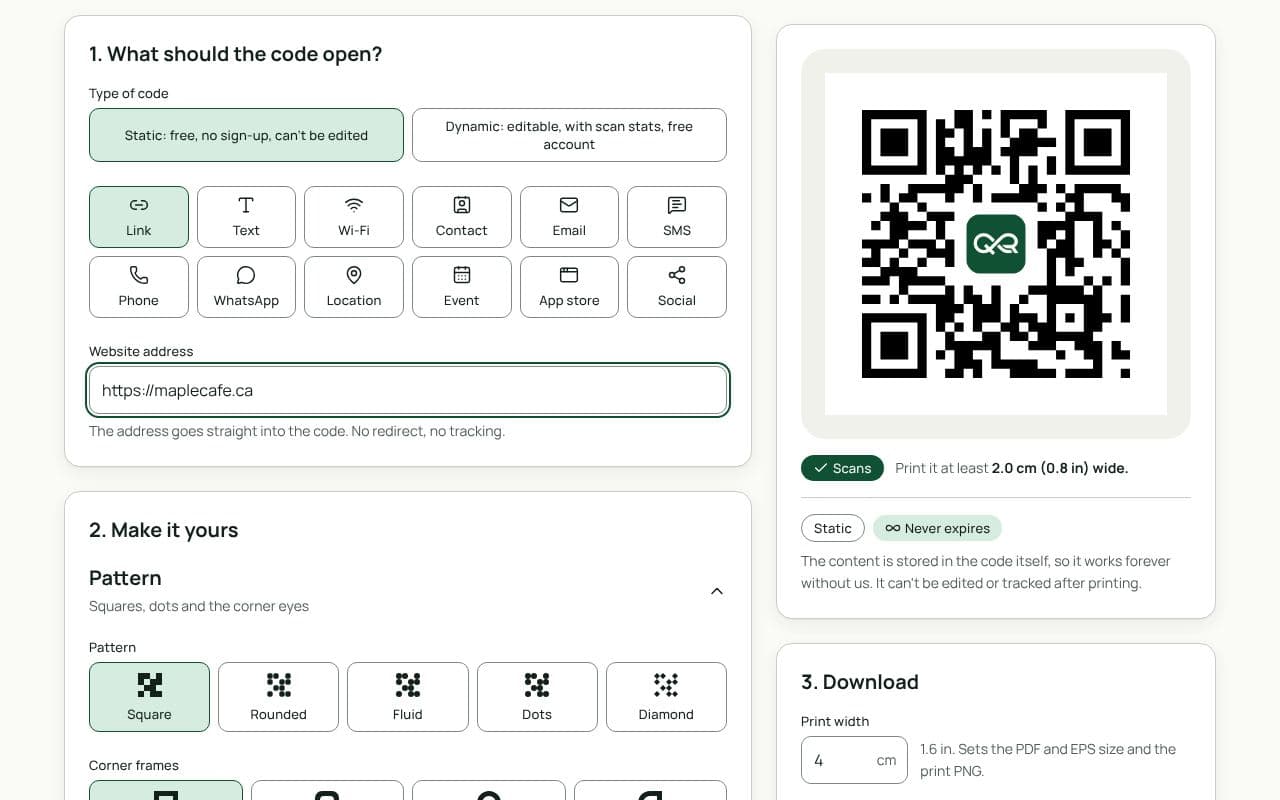
- Paste your link. Enter the page in “Website address” and choose Static or Dynamic under “Type of code”.
- Upload your logo. In “2. Make it yours”, add your logo file. We raise error correction automatically so the code can make up for the area the logo covers.
- Adjust the size and spacing. Use Logo size to scale it, and Space around the logo to give it breathing room. Turn on “Clear the code behind the logo” so no half-hidden squares peek out around the edges.
- Watch the scan check. The preview is decoded like a phone camera would. If it warns that the logo is too large, make it smaller until the warning clears.
- Download or save. Download a static code as PNG or JPG (SVG, PDF and EPS with a plan), or save a dynamic code to your free account.
How error correction works
Every QR code uses one of four error correction levels: L, M, Q and H. Level H, the highest, can restore up to about 30% of the code if it is damaged or covered. Higher levels add more spare data, which makes the pattern denser, so there is a trade-off: a logo needs a higher level, and a higher level needs a slightly bigger print. You can change the level under Error correction if you want to, but the automatic setting suits most logos.
Treat that 30% as a safety margin, not a target. A logo that uses all of it leaves nothing for a scratch, a crease or a reflection, and the code may fail in real conditions even if it scans on your screen.
Design and print tips
- Use a simple mark. A symbol or monogram reads at 2 cm; a full wordmark becomes a smudge.
- Keep it centred and small. Leave the three corner squares and the quiet zone around the edge completely clear.
- Match the code to your brand, carefully. Use your brand colour for the code or the corners, but keep it dark against a light background with a contrast of at least 3:1.
- Print slightly larger. Because the pattern is denser with a logo, add a few millimetres to the size you would use for a plain code.
- Test the real print. Scan a proof on the actual paper or label, under the lighting where it will be used.
Static or dynamic?
Either works
The logo works the same on both. Choose static for a link that will never change, or dynamic if you want to change the destination later or count scans; a dynamic code stores a short address, so its pattern stays simpler around your logo.