

Skip to content
QRfinityQRfinity

Free Wi-Fi QR code generator

Guests scan once and they’re online. No typing, no spelling out passwords.

Fill in the details to see your code.

StaticNever expires

1. What should the code open?

Content type

The password is stored inside the code, so anyone who scans it can join.

2. Make it yours

PatternSquares, dots and the corner eyes
Pattern
Corner frames
Corner centres
ColoursCode, corners and background
Code colour

For PNG, SVG, PDF and EPS. JPG always gets a solid background.

LogoThe Wi-Fi icon
Logo to show

Shows a wi-fi icon for this kind of code. Choose None or your own logo to change it.

FrameA call to action around the code
Frame style
AdvancedError correction and margin

Higher levels survive scratches and smudges but make a denser code.

4 modules
Saved designsReuse a design on your next code

Saved in this browser only. Accounts will keep them across devices.

What a Wi-Fi QR code does

A Wi-Fi QR code stores your network name, password and security type in the standard format phones understand. When someone points their camera at it, the phone offers to join the network. They don’t type anything, so nobody gets a letter wrong and you don’t have to spell out “capital P, zero, not O” at the counter.

It suits cafés, restaurants, rental homes, offices, clinics and events: anywhere guests ask for the Wi-Fi more than once a day.

How to make a Wi-Fi QR code

  1. Enter your network name. Type the name (SSID) exactly as it appears in your phone’s Wi-Fi list. Capitals and spaces matter.
  2. Choose the security type and enter the password. Most routers use WPA, WPA2 or WPA3; pick “No password” for an open network.
  3. Check the scan result. The preview updates as you type, and we decode it like a phone camera would. Test it with your own phone too: it should offer to join your network.
  4. Make it yours, then download. Add a frame with the text “Wi-Fi” so people know what the code is for, then download a PNG for screens or a PDF or SVG for printing.
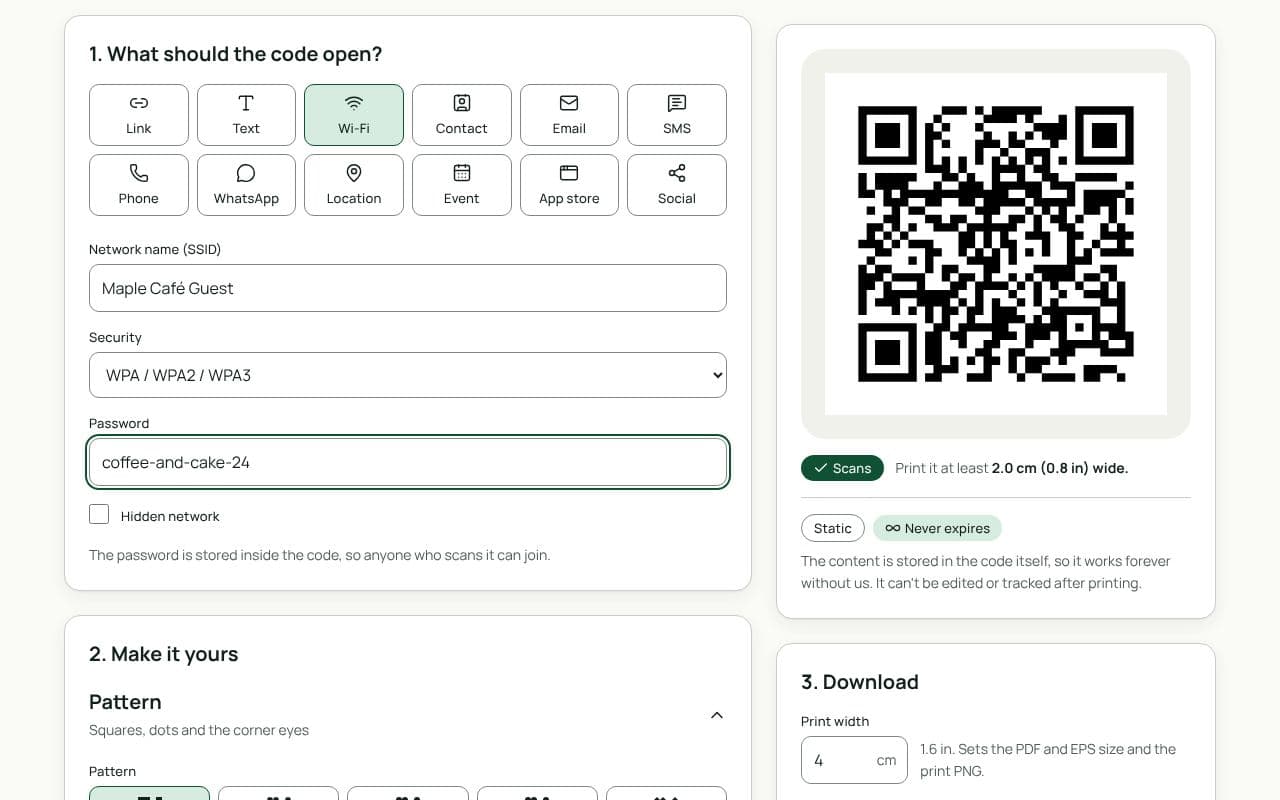
The QRfinity generator with Wi-Fi selected, a network name and password filled in, and the preview showing a scannable code.

Design and print tips

  • Say what it is. A frame that reads “Wi-Fi” or “Scan to join our Wi-Fi” gets far more scans than a bare code. Add the network name in small text underneath for people whose camera won’t cooperate.
  • Size it for the distance. On a table tent or counter card, 3 to 4 cm wide is plenty. On a wall poster read from 2 metres away, aim for at least 20 cm. A rough rule: width of about one tenth of the scanning distance.
  • Keep the contrast high. Dark code on a light background. Avoid printing on glossy laminate under bright lights; matte paper scans more reliably.
  • Print one per table or room. People scan from their seat, not across the room.
  • Use a guest network. Most routers let you create one in a few minutes. It keeps visitors away from your printers, cameras and computers.

Static or dynamic?

We recommend: static

Wi-Fi codes are always static: the phone joins using the details stored in the code, and it works even with no internet connection. If you change your password, make a new code and replace the printed one.

Questions people ask

Do Wi-Fi QR codes work on iPhone and Android?

Yes. The camera app on iPhones (iOS 11 and later) and on most Android phones (Android 10 and later, or through Google Lens) reads Wi-Fi codes and offers a “Join network” button. No app is needed.

What happens if I change my Wi-Fi password?

The old code stops connecting people, because the password is stored inside the code itself. Make a new code with the new password and replace the printed one. The code never expires; it just holds the old details.

Is it safe to put my Wi-Fi password in a QR code?

It is as safe as writing the password on a card: anyone who can scan the code can join. For customers and visitors, point the code at a separate guest network so they never reach your own devices.

Can a Wi-Fi QR code be dynamic?

No. Phones only join a network from the details stored in the code, not from a web link, so Wi-Fi codes are always static. That also means they work with no internet connection and without QRfinity.

Does it work for hidden networks?

Yes. Tick “Hidden network” so the phone knows to look for a network that isn’t broadcasting its name. Type the name exactly as it is set on your router, including capital letters.

Guides