

What a Google review QR code does
A Google review QR code opens your business’s review form on Google. The customer scans, chooses a star rating and writes a few words, without searching for your business or scrolling through the map listing. Removing those steps is what turns “I’ll leave you a review later” into a review today.
Restaurants, salons, dentists, mechanics, hotels, gyms and shops put them on counters, receipts, invoices, takeaway bags and thank-you cards: anywhere the customer is at the end of a good visit.
How to get your review link
- Sign in to the Google account that manages your business, then search for your business name on Google or open it in Google Maps.
- In your Business Profile, choose “Ask for reviews” or “Get more reviews”. The wording varies a little between Search and Maps.
- Copy the short link Google shows you. Open it on your phone once to check that it lands on your review form.
How to make a Google review QR code
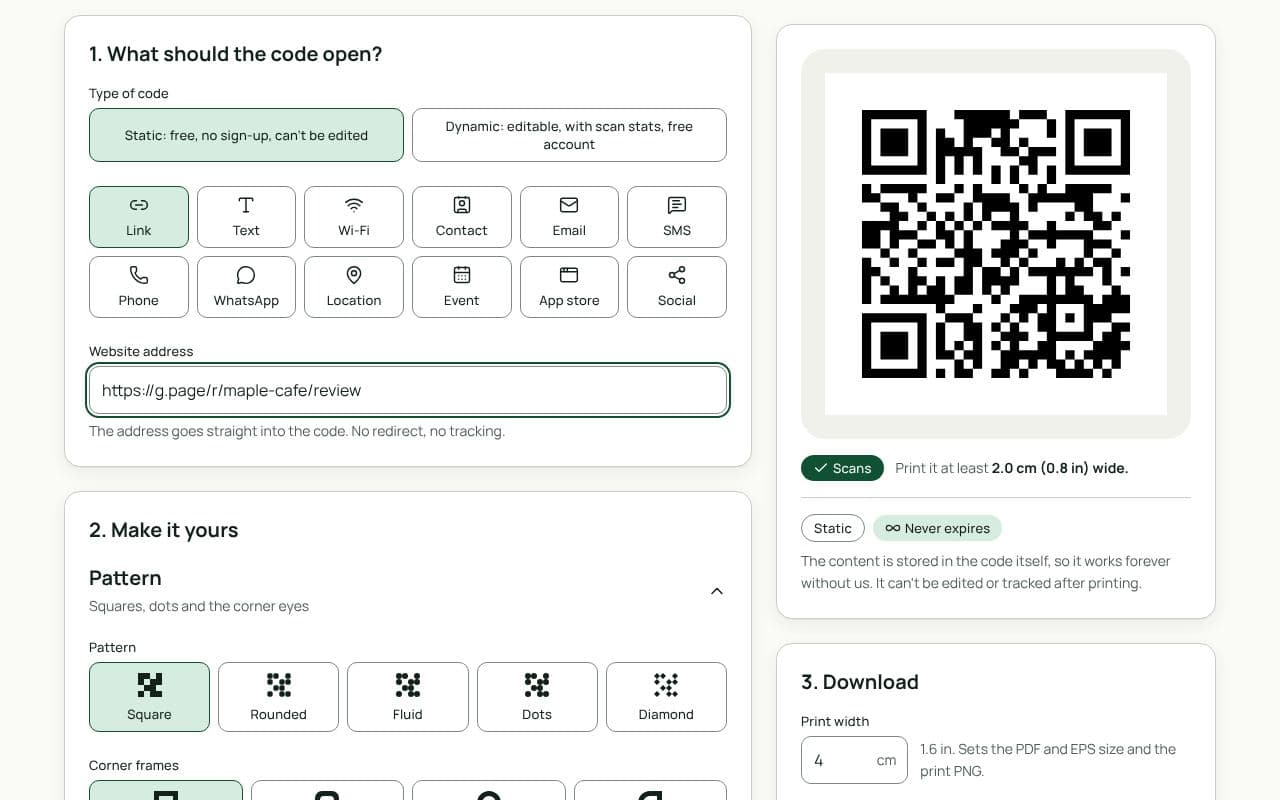
- Paste your review link. Put the link from Google into “Website address”.
- Choose Dynamic. Under “Type of code”, pick Dynamic so you can change the destination later and count scans.
- Add a frame. Choose a frame style and use the suggested text “Review us”, or write your own, such as “Enjoyed your visit? Review us on Google”.
- Save your dynamic code. Sign in with an email link or Google to save it to your free account, then download a PNG or JPG, or SVG, PDF or EPS with a plan.
Google’s review policies prohibit offering incentives for reviews and asking only happy customers to leave one. Wording like “10% off for a 5-star review” or showing the code only after a satisfaction check can get reviews removed. Ask everyone, plainly.
Design and print tips
- Ask at the right moment. Place the code where people are when the service is done: the till, the receipt, the bill folder or the bag.
- Use neutral wording. “Tell us how we did” or “Review us on Google” works and stays within Google’s rules. Don’t mention star ratings.
- Size it for the counter. A counter stand or table card needs a code about 3 to 5 cm wide. On a receipt, 2 to 2.5 cm is enough if the printer is sharp.
- Check thermal receipt prints. Receipt printers can blur fine detail. Print a test receipt and scan it before relying on it.
- Add your logo. A recognisable logo reassures people that the code belongs to you and isn’t a sticker someone added.
Static or dynamic?
We recommend: dynamic
Use a dynamic code. If Google changes your review link, you move to another review site, or you open a second location, you change the destination instead of reprinting every counter card. You also see how many people scan it.