

What a WhatsApp QR code does
A WhatsApp QR code opens a chat with your number in WhatsApp. If you add a message, it is already written in the chat box, so the customer only has to press send. They don’t need to save your number, find you in their contacts or type a greeting.
Small businesses use them for orders, bookings, quotes and support: a bakery taking cake orders, a plumber on the side of a van, a tour guide on a flyer, a shop answering stock questions. They also suit community groups and events that run on WhatsApp.
How to make a WhatsApp QR code
- Enter your number in international format. Type it in “WhatsApp number” with the country code first, such as +1 416 555 0134. Leave out the trunk zero of a local number.
- Write an opening message, if you want one. Use “Message (optional)” for something like “Hi, I’d like to order a cake for” so you know where the chat came from and what it’s about.
- Choose static or dynamic. Keep Static for a number you will always use, or pick Dynamic under “Type of code” to change the number or message later and count scans.
- Make it yours, then download or save. Add a frame such as “Chat with us” or “Book now”, then download a static code or save a dynamic code to your free account.
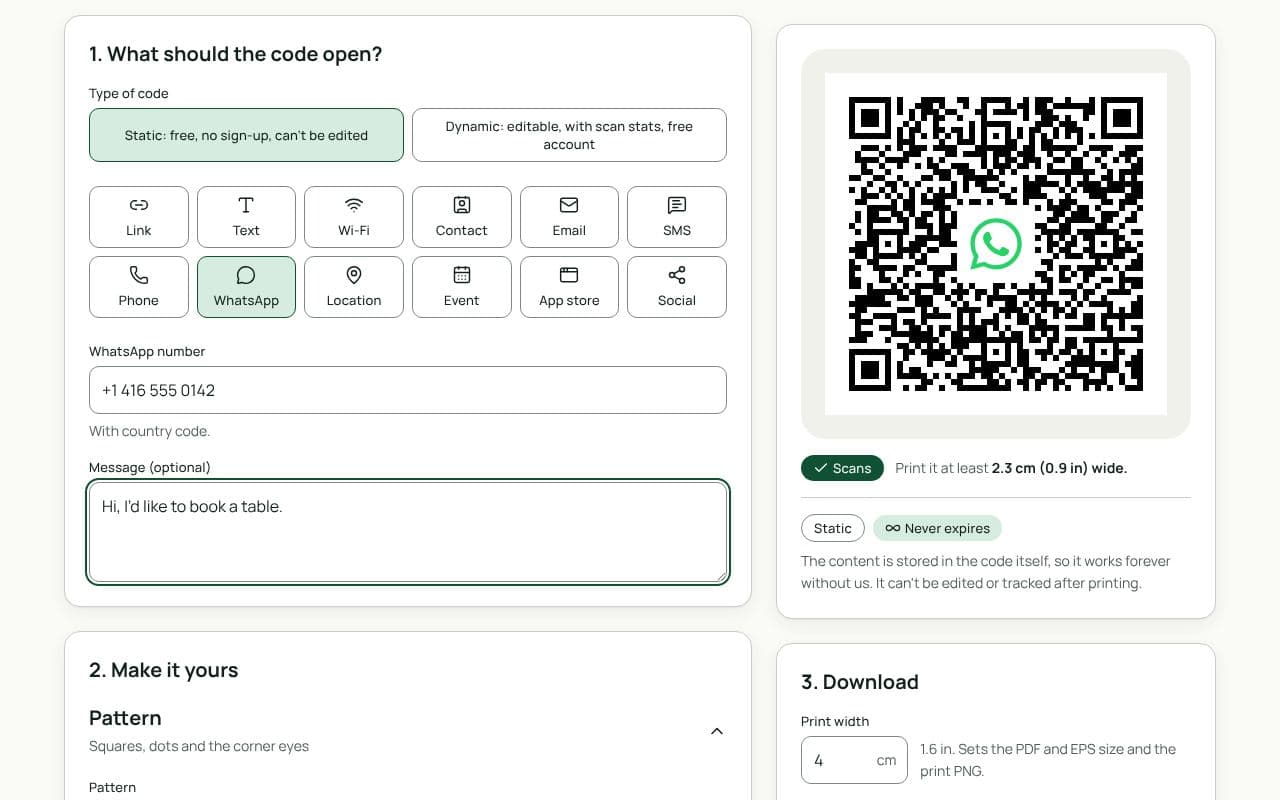
Writing a good pre-filled message
Keep it short and leave it open, so the customer can finish the sentence. A message that names the source, such as “Hi, I saw your poster at the market”, tells you which print is working. One that sets up the request, such as “I’d like a quote for”, saves a round of back-and-forth. Avoid long paragraphs: they make the code denser, and people delete them anyway.
Design and print tips
- Say what the chat is for. “Order on WhatsApp”, “Questions? Chat with us” or “Book on WhatsApp” works better than a code on its own.
- Print your number too. Some people would rather call or text. A visible number also shows that the code is genuinely yours.
- Size it for where it goes. A vehicle decal read across a car park needs 25 cm or more; a flyer or price tag needs 2.5 to 4 cm.
- Use high contrast outdoors. Vans, windows and signs face sunlight and glare. Dark modules on a white panel scan best.
- Set expectations on replies. If you only answer during business hours, say so next to the code, or set up an away message in WhatsApp Business.
Static or dynamic?
Either works
A static code is fine if the number won’t change. Choose dynamic if a different person may take orders later, you might switch to a new business number, or you want to change the pre-filled message and see how many people scan.