

What a QR code on a product insert does
A QR code on an insert card takes a buyer from the box to something useful in one scan: a setup guide, a short video, a warranty form or a way to reach support. It answers the questions people have while the product is in their hands, which is when they’re most likely to look.
Done well, it means fewer “how do I…” returns and fewer frustrated reviews from people who simply couldn’t find the instructions.
How to make an insert card QR code
- Decide what the card is for. Pick one job: setup help, a how-to video, warranty registration or support.
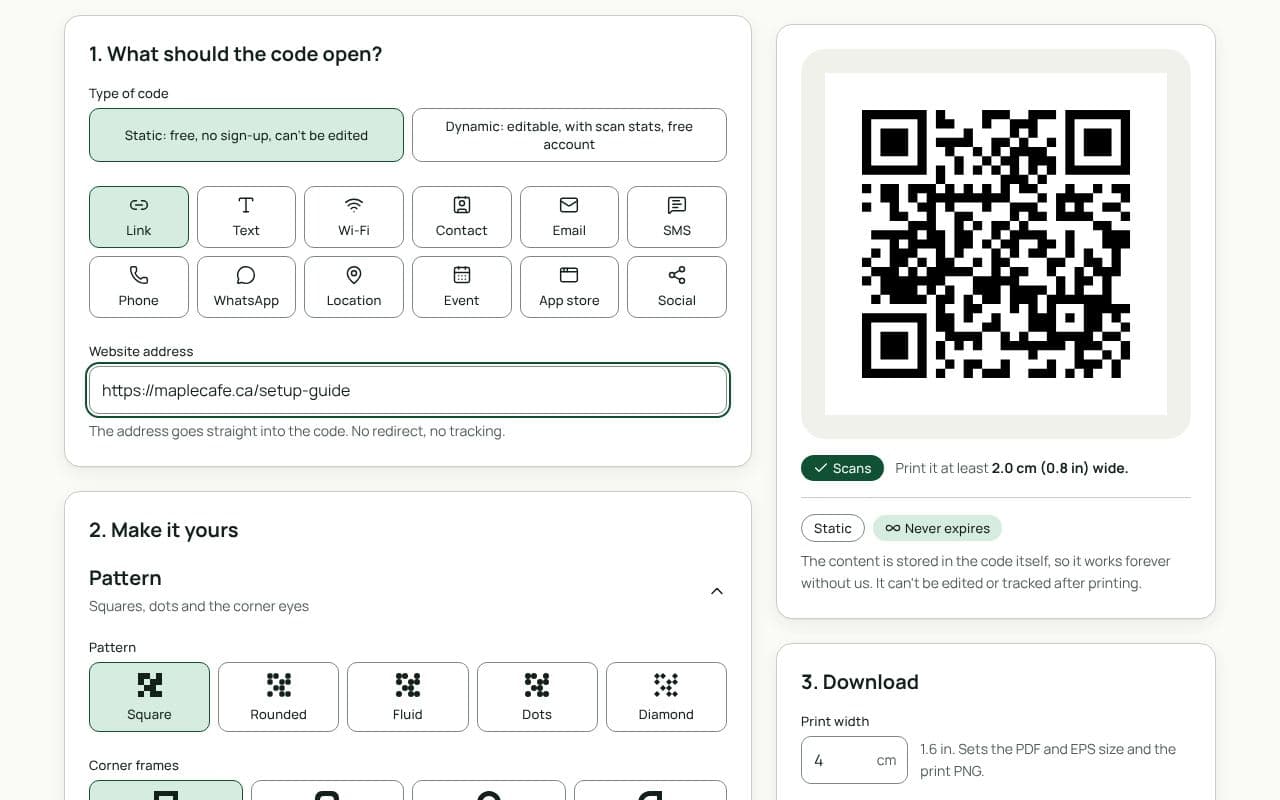
- Paste the link. Enter the page address in “Website address”.
- Make it dynamic. Save it to your free account so you can change where it points during the life of the print run.
- Download for print. Add a frame, check the scan result at your print width, and download a PDF, SVG or EPS for your printer.
Design and print tips
- Lead with the benefit. “Scan for the 3-minute setup video” tells buyers why to scan. Frame text like “Setup guide” or “Get help” works too.
- Keep the wording neutral. If you mention reviews, ask for honest feedback and nothing more. No stars, no “if you loved it”, no offers.
- Print at 300 dpi or use vector files. SVG, PDF or EPS stay sharp at any size, which suits commercial printers.
- Avoid glossy coatings over the code. Matte card scans more reliably under kitchen and warehouse lights.
- Test a printed proof. Scan the physical sample, not just the screen, before approving thousands of cards.
Amazon’s Community Guidelines and seller policies forbid offering incentives for reviews, asking only for positive reviews, and directing buyers off Amazon to leave feedback in exchange for something. Read the current policy in Seller Central before printing; breaking it can put your account at risk.
Good things to link to
- A setup or quick-start guide. A mobile-friendly page beats a PDF that needs zooming.
- A how-to video. Two minutes of footage answers more questions than a folded leaflet.
- Warranty registration. A short form that confirms cover, with no strings attached.
- Support contact. A page with your email or chat, so problems reach you before they reach a review.
Whatever you choose, make sure the page loads quickly on a phone and doesn’t ask for anything in exchange for help.
Static or dynamic?
We recommend: dynamic
Choose dynamic. Insert cards are printed in batches that last months, and a dynamic code lets you swap in a new guide, video or support page without reprinting. You’ll also see how many buyers actually scan.