

What a YouTube QR code does
A YouTube QR code takes someone from a printed page to a video or channel in one scan. That’s handy when a picture isn’t enough: assembling furniture, setting up a device, cooking a recipe on the back of a pack, or seeing the band before buying a ticket.
Makers print them in manuals and on packaging, teachers put them on worksheets, and creators add them to merch and business cards to grow subscribers.
How to make a YouTube QR code
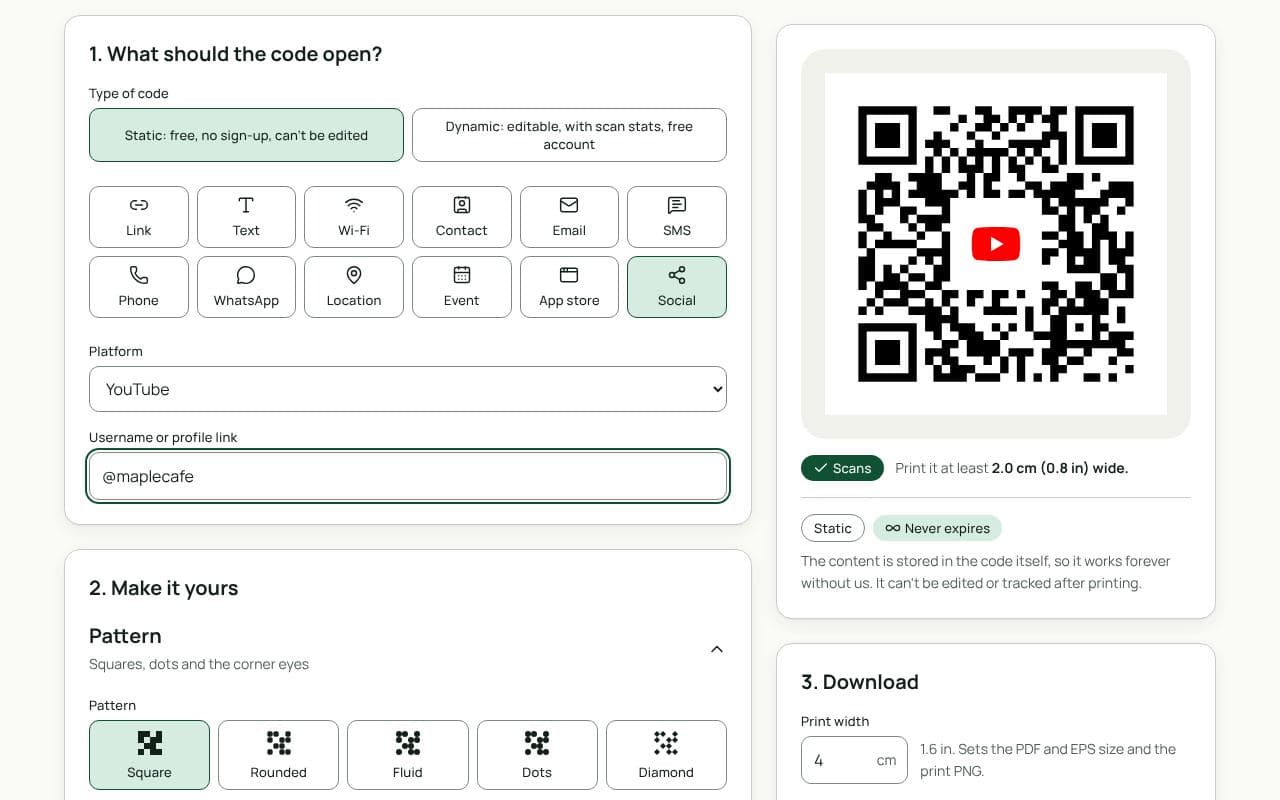
- Check that YouTube is selected. This page picks the Social type with “Platform” set to YouTube.
- Add your channel or video. In “Username or profile link”, type your channel handle or paste a full video link, including any timestamp.
- Make it yours. Choose colours, add a logo and a frame with text such as “Watch the video”.
- Save or download. Save it as a dynamic code to your free account if you might swap the video later, or download a static code now.
Design and print tips
- Say what they’ll watch. “Watch the 2-minute setup video” beats “Scan me”. People scan more when they know the payoff and how long it takes.
- Put it where the question comes up. In a manual, place the code on the step people get stuck on, not only on the back cover.
- Size for small print. On packaging and inserts, keep it at least 2 cm wide, and give it a margin of 4 modules or more.
- Avoid curved or creased spots. On a bottle or a folded box edge, the camera sees a distorted code. Use a flat panel.
- Keep the video public or unlisted. A private video shows an error to everyone who scans.
Channel, video or playlist?
Match the link to what the reader needs at that moment:
- A single video for one task, such as fitting a filter or pairing headphones. Add a timestamp if the useful part starts a minute in.
- A playlist for a product with several steps or models. Share the playlist from YouTube and paste its full link; you can add videos to it later without changing the code.
- Your channel for business cards, shop windows and event banners, where the goal is subscribers rather than one view.
If you’re not sure which to choose, a dynamic code lets you start with one and switch later.
Static or dynamic?
We recommend: dynamic
For packaging and manuals, go dynamic: products outlive videos, and you can point the code at an updated tutorial without reprinting a single box. For a one-off poster linking to a channel, static works too.