

A contact card QR code on your conference badge lets people save your details in one scan, without trading business cards or spelling out your email over the noise of an expo hall. Phones read it with the camera and offer to add you to contacts. Made in your browser, free, and the code never expires.
How to make a badge QR code
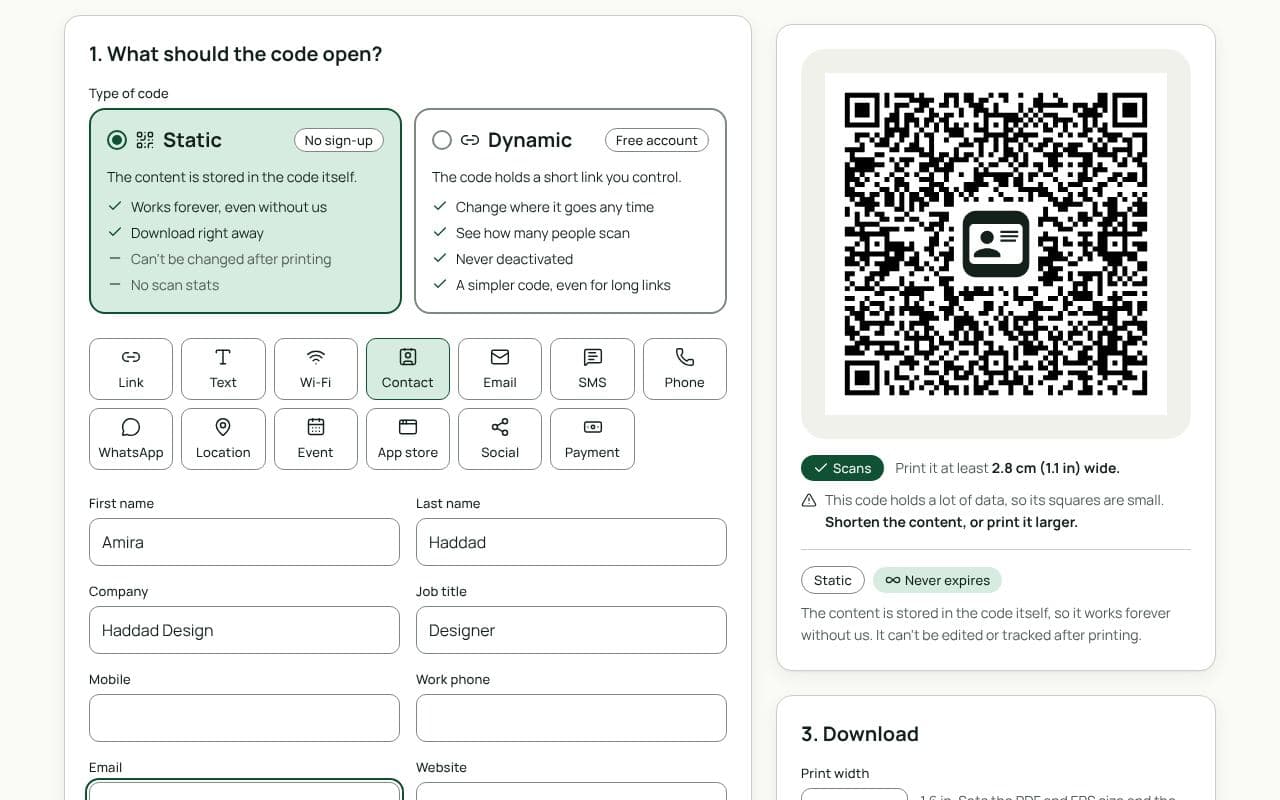
- Fill in your details in the contact card fields above: name, job title, company, email, and LinkedIn if you like.
- Keep it short. Fewer fields make a simpler code that scans faster from a lanyard.
- Download a PNG and add it to the badge design, or print it on a sticker for the back of the badge.
- Test it with a phone from about 50 cm away.
Tips for events
- Put it where it can be seen. Badges flip on lanyards; a code on both sides helps.
- Size it for arm’s length: 2.5 to 3 cm on a 4 × 3 inch badge.
- Only share what you’d hand out. Anyone who scans gets everything in the code.
- Add LinkedIn. Or make a separate LinkedIn QR code for slides and your booth.
Want to update your details later?
A static contact card holds your details in the code itself: perfect for one event, but fixed once printed. A dynamic contact card opens a page on qrfinity.link with a Save contact button, and you can change the details any time, which suits badges, business cards and booth signs you reuse. Dynamic codes are free with an account.
Static or dynamic?
We recommend: static
Static is fine for a single event: your details live in the code, it works without internet, and no account is needed. Choose a dynamic contact card if you reuse the badge or want to update your job title or email later.