
What a LinkedIn QR code does
A LinkedIn QR code opens your profile or company page in one scan, so a new contact can connect while you’re still talking. No spelling your name, no searching through people who share it.
People print them on business cards, conference badges, résumés and the last slide of a talk. Companies use them on stands, job ads and recruiting flyers.
How to make a LinkedIn QR code
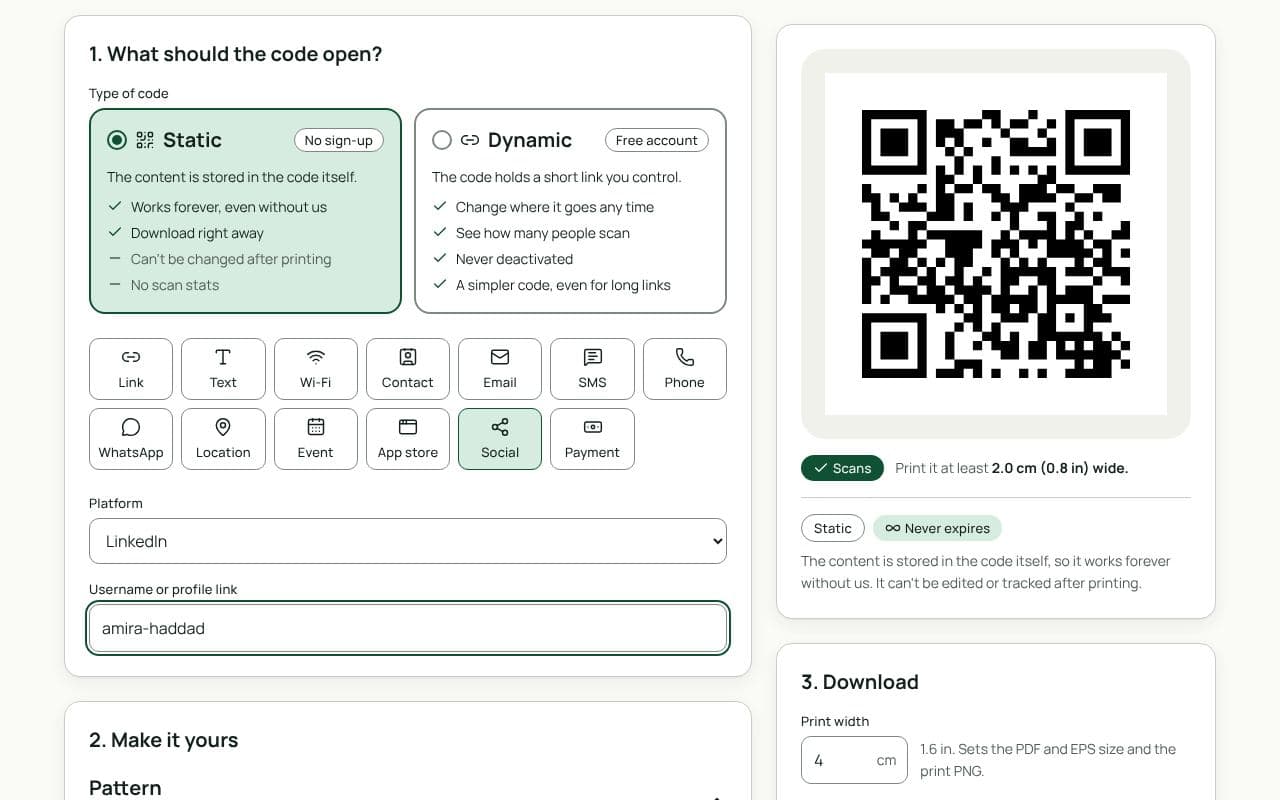
- Check that Social and LinkedIn are selected. This page loads the Social type with LinkedIn chosen as the Platform.
- Enter your username or paste your link. For a personal profile, the part after linkedin.com/in/. For a company page, paste the full link.
- Choose static or dynamic. Static works forever with nothing in between. Dynamic lets you change where it goes later and counts scans.
- Make it yours. Pick colours and a frame like “Let’s connect”. LinkedIn’s logo isn’t added automatically; add your own logo if you like.
- Download or save. Download a static code right away, or save a dynamic code to your free account.
Design and print tips
- On a badge, go big. 3 to 4 cm is easy to scan across a conference table; 2 cm is enough on a business card.
- On slides, leave it up. Put the code on your last slide at least a metre wide on the screen, and keep it up during questions.
- Write your name under it, so people know whose profile they’re opening.
- Update your profile first. A scan is a first impression: check your photo and headline before you print.
Static or dynamic?
Either works
Your LinkedIn address rarely changes, so a static code works for years. Choose dynamic for badges and slides where you want scan counts, or if you might later point the code at a portfolio or a new company page.