

Skip to content
QRfinityQRfinity

Free Google Drive QR code generator

Scan to open the file, with no link to type.

DynamicNever expires
Checking

1. What should the code open?

Type of code
Content type

Scans go here. You can change it any time without reprinting.

2. Make it yours

PatternSquares, dots and the corner eyes
Pattern
Corner frames
Corner centres
ColoursCode, corners and background
Code colour

For PNG, SVG, PDF and EPS. JPG always gets a solid background.

LogoThe Link icon
Logo to show

Shows a link icon for this kind of code. Choose None or your own logo to change it.

FrameA call to action around the code
Frame style
AdvancedError correction and margin

Higher levels survive scratches and smudges but make a denser code.

4 modules
Saved designsReuse a design on your next code

Saved in this browser only. Accounts will keep them across devices.

What a Google Drive QR code does

A Google Drive QR code opens a Doc, Sheet, Slides deck, PDF or folder in one scan. It’s the quickest way to hand out a file to a room, a class or a team without typing a long Google link.

Teachers use them for handouts and reading lists, offices for policies and rotas, event organisers for slides and photo folders, and clubs for timetables and minutes.

How to make a Google Drive QR code

  1. Share the file. In Google Drive, choose Share, set General access to “Anyone with the link” and Viewer.
  2. Copy the link and paste it into Website address.
  3. Keep it dynamic. This page starts with a dynamic code, so you can swap in a new file later without reprinting.
  4. Make it yours. Pick colours and a frame like “Slides and notes”.
  5. Save and test. Save the code, then scan it from a phone that isn’t signed in to your Google account, to check it opens for everyone.
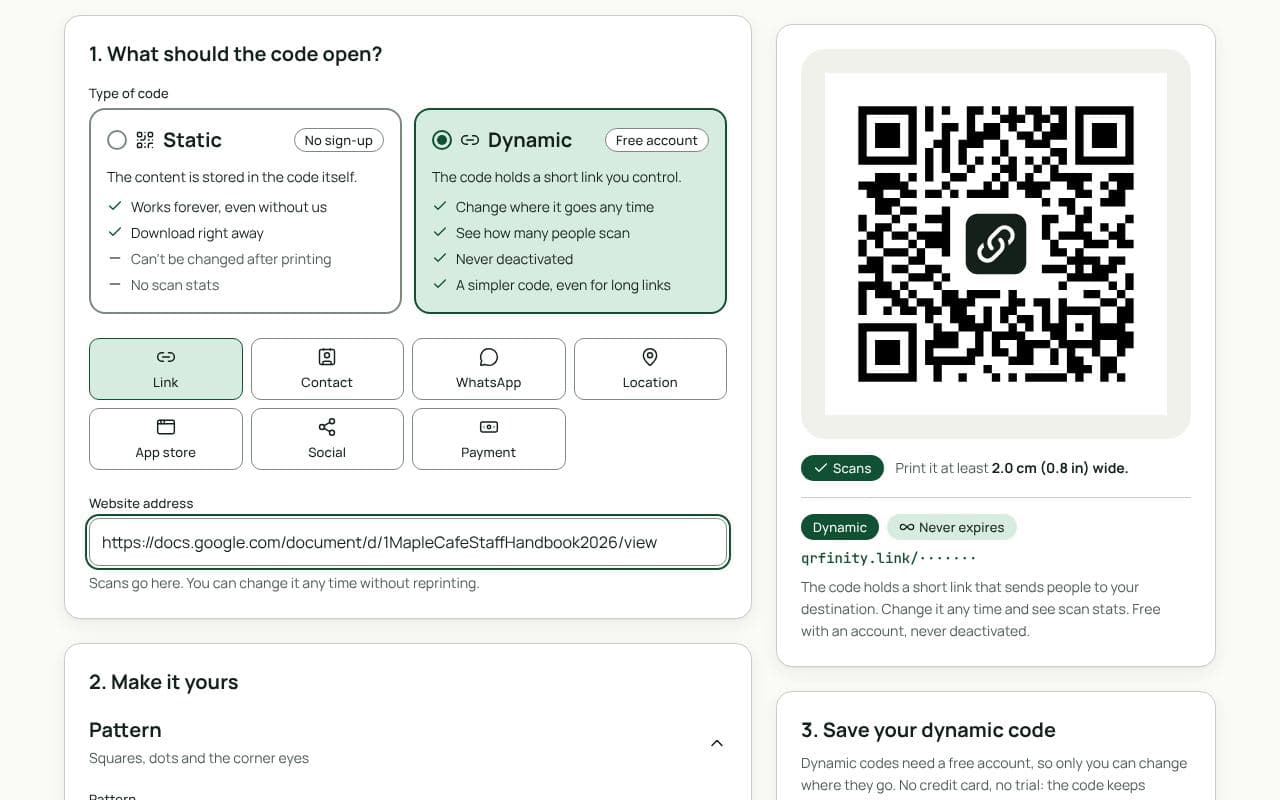
The QRfinity generator set to a dynamic code, with a Google Docs link in Website address and the code passing the scan check.

Tips for shared files

  • Test signed out. Your own phone is signed in to your account, so it always opens; a stranger’s may not.
  • Share as Viewer for anything public.
  • Use a folder for collections. One code to a folder of slides, photos or worksheets beats one code per file.
  • Long Google links make busy codes. A dynamic code holds a short link instead, so it stays simple and small.

Static or dynamic?

We recommend: dynamic

Files get replaced: a new version, next term’s handout, this year’s slides. A dynamic code lets you point the same print at the new file, and its short link keeps the code simple however long the Google address is. It’s free and never expires.

Questions people ask

Why do people see “You need access” when they scan?

The file is shared only with specific people. In Google Drive, choose Share, set General access to “Anyone with the link”, and pick Viewer. Then copy the link again.

Can I replace the file without reprinting?

Yes, with a dynamic code: paste the new file’s link into the code in your dashboard. If you only need to change the contents, edit the same Doc or Sheet and the link stays the same.

Can people edit my file from the code?

Only if you share it as Editor. For anything printed in public, share as Viewer, so people can read but not change it.

Does it work for Sheets, Slides and PDFs in Drive?

Yes. Any file or folder in Google Drive has a share link: Docs, Sheets, Slides, PDFs, photos, videos and whole folders.

Guides