

Put a QR code on the box, the quick-start card or the device itself, and the full manual is one scan away: in the buyer’s language, with videos, and always the latest version. A dynamic code means you can update the instructions, fix a mistake or add a troubleshooting video without reprinting anything. Free, and the code never expires.
How to make a manual QR code
- Publish the manual online: a web page, a help-centre article or a PDF.
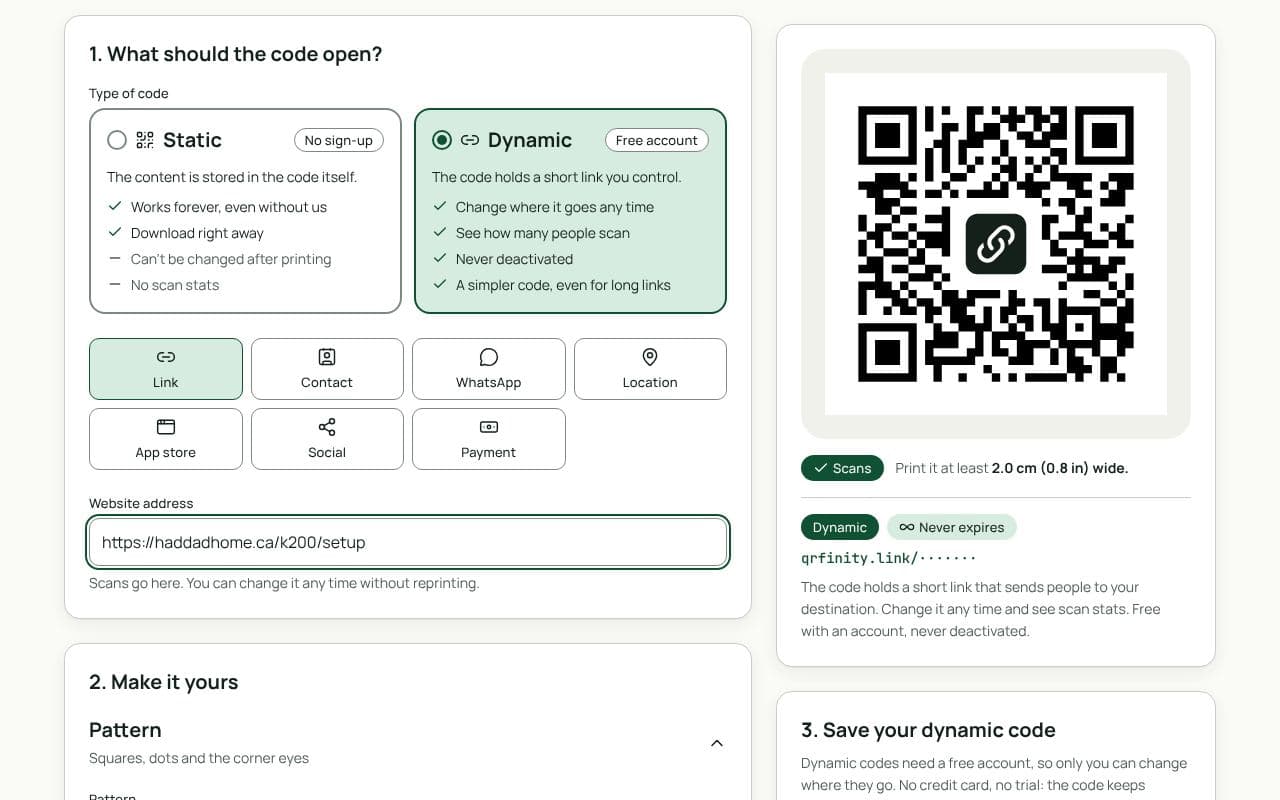
- Paste the link in “Website address” above and keep the code dynamic.
- Add a frame that says what it is: “Manual”, “Setup guide” or “Help”.
- Download and print it on the box, the quick-start card and a label on the product.
What makes a good manual page
- Starts with setup. The first screen should be the first steps, not a table of contents.
- Readable on a phone. Large text, short steps, one picture per step.
- Video for the tricky parts. A 30-second clip often replaces a page of diagrams; see YouTube QR codes.
- In the buyer’s language. Offer a language switch, or point codes for each market to a different page.
- Model number on the page, so people know they have the right manual.
Where to put the code
- The device itself: a small label on the back or underside outlives the box and helps second-hand owners.
- The quick-start card: next to the first step.
- Inside the lid of the box, where people look when they open it.
At least 2 cm wide on a card; 1.5 cm can work on a device label if the code holds a short link, which dynamic codes do. Test the smallest size before you print in bulk.
Static or dynamic?
We recommend: dynamic
Choose dynamic. Manuals get corrected and products get revised, but printed codes stay on devices for years. A dynamic code always opens the current version, and scan counts show which products generate the most questions.