

Skip to content
QRfinityQRfinity

Free PayPal QR code generator

Scan to pay you on PayPal, with the amount already filled in.

Fill in the details to see your code.

StaticNever expires

1. What should the code open?

Type of code
Content type

In your PayPal account’s currency. Leave it empty to let people type the amount.

The code opens PayPal with your details filled in. The money goes straight to you; we never handle it.

2. Make it yours

PatternSquares, dots and the corner eyes
Pattern
Corner frames
Corner centres
ColoursCode, corners and background
Code colour

For PNG, SVG, PDF and EPS. JPG always gets a solid background.

LogoThe PayPal icon
Logo to show

Shows the PayPal icon because the code opens PayPal. Choose None or your own logo to change it.

FrameA call to action around the code
Frame style
AdvancedError correction and margin

Higher levels survive scratches and smudges but make a denser code.

4 modules
Saved designsReuse a design on your next code

Saved in this browser only. Accounts will keep them across devices.

What a PayPal QR code does

A PayPal QR code opens your PayPal.Me page in one scan. The payer sees your name and photo, the amount if you set one, and pays from their PayPal balance, bank or card on their own phone. You don’t need a card reader, and they don’t have to type an email address correctly.

Freelancers put them on invoices, musicians on gig flyers, charities on donation posters, and small sellers on market stalls and order slips.

How to make a PayPal QR code

  1. Check that Payment and PayPal are selected. This page loads the Payment type with PayPal chosen.
  2. Enter your PayPal.Me name. Type the part after paypal.me/, or paste the whole link.
  3. Add an amount, or leave it open. A fixed amount suits a set price; an open one suits tips, donations and invoices that vary.
  4. Make it yours. The PayPal logo is already in the middle. Pick colours and add a frame such as “Pay with PayPal”.
  5. Scan it, then download or save. Scan the code with your own phone and check your name appears. Then download it, or save it as a dynamic code to your free account.
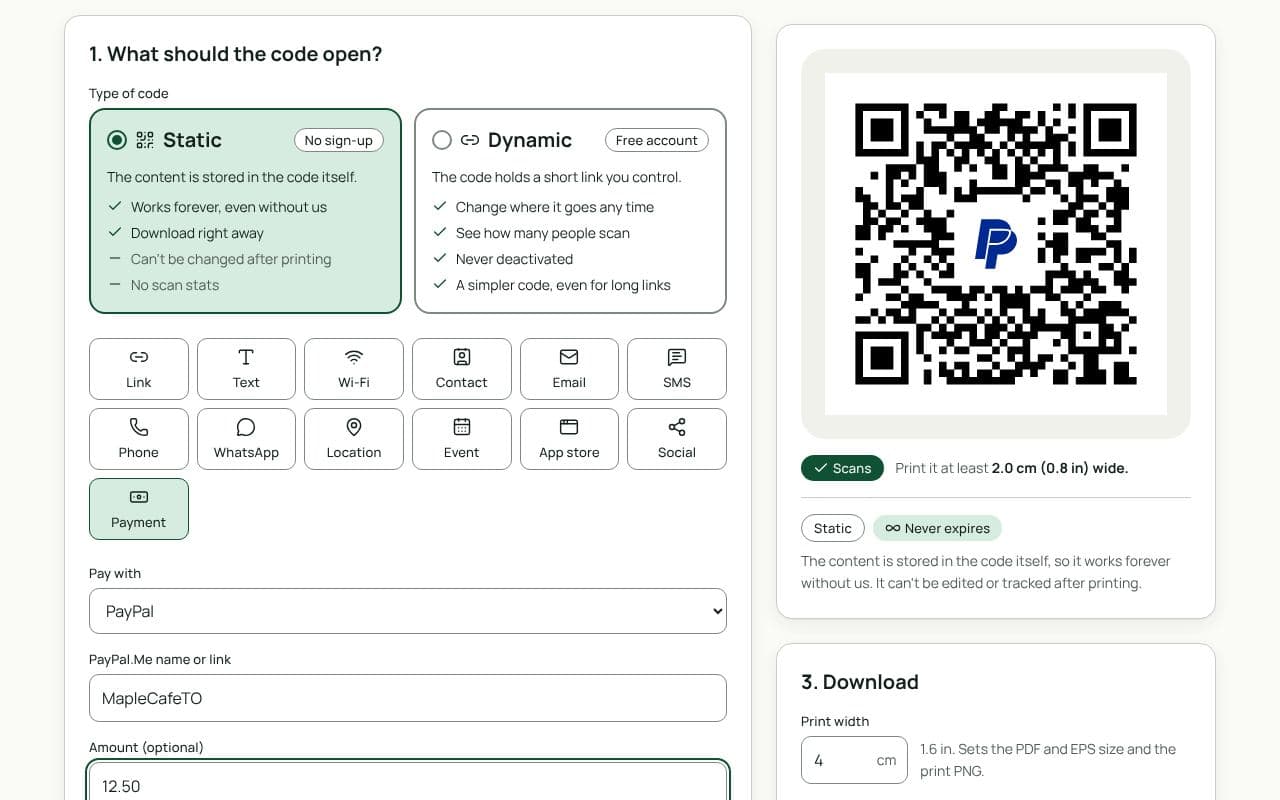
The QRfinity generator with Payment selected, PayPal chosen, a PayPal.Me name and an amount filled in, and a code with the PayPal logo in the middle.

Design and print tips

  • Print your name beside the code. Payers can match it with the name PayPal shows before they pay.
  • Say what the payment is for. “Pay for your order” or “Support the band” gets more scans than a bare code.
  • Make tampering obvious. Print the code into the sign or invoice, or put it behind a clear cover, so nobody can stick their own code on top.
  • Size it for the distance. 2.5 cm suits an invoice or card, 3 to 4 cm a counter sign, and 20 cm or more a poster read from 2 metres away.

Static or dynamic?

Either works

A static code holds your PayPal.Me link directly and works with nothing in between. Choose dynamic if the amount or the account might change, or to see how many people scan each sign; you can change it later without reprinting, and it never expires.

Questions people ask

Does QRfinity handle the payment?

No. The code opens your PayPal.Me page in PayPal, and PayPal handles the payment, the fees and the receipt. We never see the money or who paid.

Can the code ask for a fixed amount?

Yes. Type an amount and the code opens your PayPal.Me page with it filled in, in your PayPal account’s currency. Leave it empty and people type their own, which suits tips and donations.

What do I need first?

A PayPal.Me link. You can create one in your PayPal account; it looks like paypal.me/yourname. Then enter the name part, or paste the whole link.

Is this the same as the QR code in the PayPal app?

It opens the same place. Ours adds your colours, a frame with your own words, the PayPal logo in the middle, and print-ready SVG, PDF and EPS files with a plan, all without a watermark.

What if I change my PayPal.Me name?

A static code keeps opening the old name. A dynamic code lets you point the same printed code at the new one, so choose dynamic for anything printed in bulk.

Guides