

Skip to content
QRfinityQRfinity

Free Zoom QR code generator

Scan to join the call from a phone, no meeting ID to type.

DynamicNever expires
Checking

1. What should the code open?

Type of code
Content type

Scans go here. You can change it any time without reprinting.

2. Make it yours

PatternSquares, dots and the corner eyes
Pattern
Corner frames
Corner centres
ColoursCode, corners and background
Code colour

For PNG, SVG, PDF and EPS. JPG always gets a solid background.

LogoThe Link icon
Logo to show

Shows a link icon for this kind of code. Choose None or your own logo to change it.

FrameA call to action around the code
Frame style
AdvancedError correction and margin

Higher levels survive scratches and smudges but make a denser code.

4 modules
Saved designsReuse a design on your next code

Saved in this browser only. Accounts will keep them across devices.

What a Zoom QR code does

A Zoom QR code joins your meeting from a phone in one scan: no meeting ID to type, no passcode to copy. It’s the quickest way to get people from a printed agenda, a poster or a slide into a call.

Teachers and lecturers use them for online office hours, community groups and churches for hybrid meetings, event organisers for virtual rooms, and conferences to let people in another room follow a session.

How to make a Zoom QR code

  1. Copy the join link. In Zoom, copy the invite link of the meeting or webinar, ideally the one with the passcode included.
  2. Paste it into Website address. The Zoom logo is added automatically.
  3. Keep it dynamic. This page starts with a dynamic code, so you can paste in next week’s link without reprinting.
  4. Make it yours. Pick colours and a frame like “Join online”.
  5. Save and test. Save the code, scan it with your phone, and check it opens the right meeting.
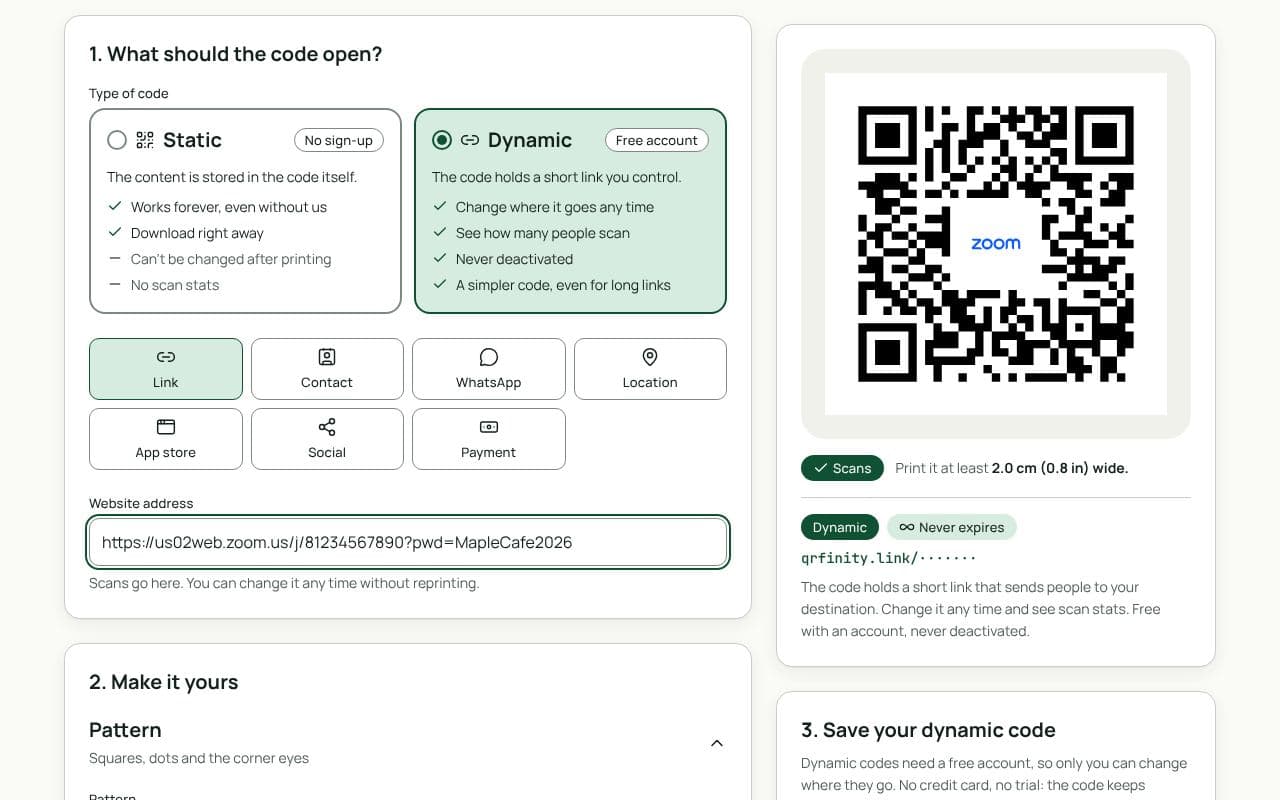
The QRfinity generator set to a dynamic code, with a Zoom meeting link in Website address and a code with the Zoom logo in the middle.

Design and print tips

  • Print the time and time zone next to the code, so people know when to scan.
  • Use a recurring meeting for weekly sessions: one link, one code, no updates needed.
  • After the meeting, point it somewhere useful, such as the recording or next month’s session.
  • On slides, leave it up for latecomers, at least a metre wide on the screen.

Static or dynamic?

We recommend: dynamic

Meeting links change: new sessions, new rooms, a recording afterwards. A dynamic code lets you update it in seconds and keep the same printed code, and you can set it to switch on a date. It’s free and never expires.

Questions people ask

Does it work for Microsoft Teams and Google Meet?

Yes. Any meeting link works: Zoom, Microsoft Teams, Google Meet, Webex and others. Paste the join link into Website address.

Will the passcode be included?

If your Zoom invite link includes the passcode (the long link ending in ?pwd=…), the code includes it too and people join without typing it. If not, they’ll be asked for it.

My meeting link changes every week. Can one code keep up?

Yes, with a dynamic code. Paste the new link into the code in your dashboard before each meeting, or use a recurring meeting or your personal meeting room, whose link stays the same.

Can the code switch to the recording afterwards?

Yes. Point the dynamic code at the recording yourself, or set a date limit so scans go to the recording automatically once the meeting is over.

Guides